
Why Fake Microsoft Security Alerts Target Older Adults
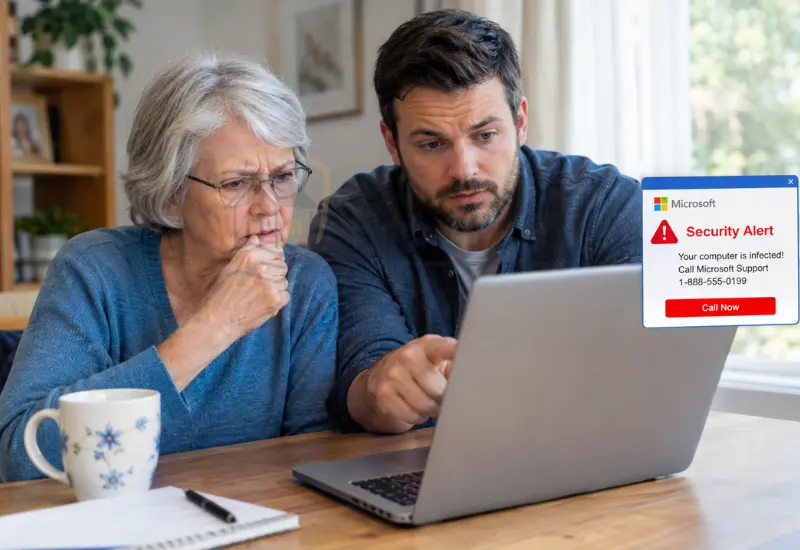
A fake Microsoft security alert is designed to create fear before the person has time to verify it.
The warning may claim that Windows detected a dangerous virus. It may say personal information is being stolen or the computer will be blocked.
Some scam pages use loud sounds, repeated pop-ups, or full-screen messages. Microsoft says fake technical-support warnings commonly use these tactics to pressure people into calling the displayed number.
Older adults may also trust the Microsoft name because Windows is familiar technology. That familiarity can make a frightening message appear more credible.
The problem is not a lack of intelligence or technical ability. These scams are deliberately designed to create urgency and reduce careful decision-making.
That is why families should teach a simple response rather than expecting a parent to identify every new scam.
What Does a Fake Microsoft Security Alert Look Like?
Fake warnings can appear in several forms. Most have one thing in common: they try to make the user act immediately.
A Phone Number Appears in the Warning
This is one of the clearest warning signs.
Genuine Microsoft error messages do not include a phone number telling you to call for technical support. Microsoft specifically advises users never to call a number provided in an error message.
A fake Microsoft security alert may display a number prominently. It may also tell the user not to close the window.
Treat that combination as a major scam warning.
The Alert Says the Computer Is Infected
The message may claim that Windows detected:
- A virus
- Trojan malware
- Spyware
- A security breach
- Stolen passwords
- Suspicious activity
- A compromised Microsoft account
- An identity-theft threat
The warning may look technical, but technical language does not make it legitimate.
A website can display frightening messages without having access to the computer’s actual security status.
The Message Uses Fear and Urgency
Watch for phrases such as:
- Call Microsoft immediately.
- Do not turn off your computer.
- Your files are at risk.
- Your identity may be stolen.
- Your computer has been blocked.
- Do not close this warning.
- Call within five minutes.
- Your Windows security has expired.
Urgency is a common scam tactic. Microsoft explains that attackers use urgent messages to push people into acting before they verify the information.
The Browser Appears Frozen
A malicious webpage can make a browser appear difficult to close.
It may repeatedly display pop-ups, play warning sounds, or show a full-screen message. Microsoft notes that fake technical-support pages can use these techniques to make the situation appear more serious.
A frozen-looking browser does not prove that Windows itself has been compromised.
How Can You Tell if a Microsoft Security Alert Is Fake?
The fastest approach is to look for several warning signs together.
| Warning Sign | What It Means |
|---|---|
| Phone number inside the warning | Major scam warning. Genuine Microsoft error messages do not include a phone number for technical support. |
| Urgent demand to call | A common pressure tactic designed to make the user act before verifying the warning. |
| Request for remote access | A serious security risk because the scammer may gain control of the computer or view private information. |
| Request for payment | A strong indicator that the supposed support representative is a scammer. |
| Request for gift cards | A major scam warning. Legitimate Microsoft support does not require gift cards to fix a computer. |
| Request for cryptocurrency | A major scam warning and a strong reason to stop communicating with the caller. |
| Request for passwords | Do not provide passwords to someone who contacted you unexpectedly. |
| Unexpected Microsoft phone call | Suspicious because Microsoft does not proactively call users to provide unsolicited technical support. |
| Frightening browser pop-up | It may be a malicious webpage designed to make a normal browser problem look like a serious computer infection. |
| Demand to act immediately | Pressure designed to prevent the user from stopping, verifying the message, or asking someone they trust. |
The phone number is particularly important. Microsoft states that genuine error messages do not include phone numbers for technical support.
Another important rule is that Microsoft does not proactively call people to offer unsolicited PC or technical support.
What Should an Elderly Parent Do When a Fake Microsoft Alert Appears?
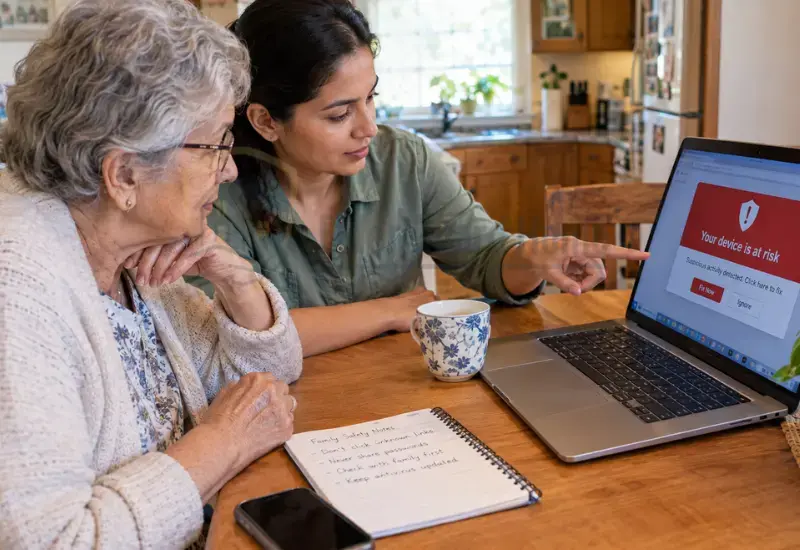
The safest response is to stop interacting with the warning.
Your parent does not need to diagnose the computer immediately. The first goal is preventing the scammer from gaining access.
Do Not Call the Number on the Screen
Tell your parent to ignore any phone number shown inside the warning.
Do not call it even if the message says the computer is infected. Do not call it even if the warning uses Microsoft’s logo.
If technical help is actually needed, find Microsoft’s official support information independently.
Do Not Click the Warning or Download Software
Do not click buttons such as:
- Call Support
- Fix Now
- Remove Virus
- Scan Computer
- Download Security Tool
- Renew Protection
Do not install remote-access programs because a pop-up or caller tells you to.
Microsoft warns that tech-support scammers may use remote access to steal information or install malicious software.
Close the Browser Safely
Try closing the browser normally first.
If the browser does not respond, Microsoft recommends trying Alt + F4 on Windows. If that still does not work, restarting the computer may be necessary.
Your parent does not need to keep interacting with the warning to make it disappear.
Ask a Trusted Family Member for Help
If your parent is unsure whether the warning is real, stopping is enough.
Tell them to call you or another trusted person using a phone number they already know. Microsoft also recommends contacting a trusted advisor or family member when someone is worried about a device problem.
This creates an important pause between seeing the warning and taking action.
What If the Fake Microsoft Alert Will Not Close?
A browser that appears frozen can be frightening. However, your parent should not call the number displayed on the screen.
Try closing the browser normally. If that fails, use the appropriate Windows keyboard shortcut to close the application.
If the browser remains unresponsive, restart the computer. Microsoft specifically recommends closing the browser or restarting the computer when fake pop-ups cannot be closed normally.
After restarting, do not return to the suspicious webpage.
If the warning repeatedly returns, have a trusted technician check the computer. Do not use a technician whose contact information came from the suspicious warning.
What If the Scammer Calls Your Parent?
A scammer may call after the parent sees a fake warning.
The caller may claim to be a Microsoft employee or security specialist. They may say they detected a virus or suspicious activity.
Hang up.
Do not confirm your parent’s name, address, computer model, Microsoft account, or banking information.
Do not provide:
- Passwords
- Verification codes
- Social Security numbers
- Bank information
- Credit-card details
- Remote-access permissions
Microsoft says legitimate technical-support companies will not cold-call users to tell them there is a problem with their computer.
What If an Elderly Parent Already Gave the Scammer Remote Access?
Remote access creates a different level of risk.
The scammer may have viewed files, passwords, browser sessions, financial information, or other personal data. They may also have installed software.
Disconnect the Scammer’s Remote Access
Stop communicating with the scammer immediately.
If remote access is still active, disconnect the computer from the internet. Do not allow the caller to continue “fixing” the computer.
Avoid giving the scammer another opportunity to control the device.
Change Important Passwords
Change passwords for accounts that may have been exposed.
Start with email because access to email can help scammers reset other accounts.
Also review:
- Microsoft accounts
- Banking accounts
- Payment accounts
- Shopping accounts
- Social-media accounts
- Cloud storage
If the same password was reused elsewhere, change those accounts too.
The FTC recommends changing compromised passwords, using new strong passwords, and enabling two-factor authentication after a scammer gains account information.
Check Financial Accounts
Review bank and credit-card activity carefully.
Look for unfamiliar purchases, transfers, withdrawals, or account changes. Contact the financial institution immediately if suspicious activity appears.
If the scammer saw banking information during remote access, tell the bank what happened.
Have the Computer Checked
If the scammer installed software or had remote access, consider having the computer checked by someone you trust.
Update security software and run a security scan. The FTC recommends updating security software, running a scan, and removing identified problems after a scammer gains computer access.
Do not download a supposed “cleanup tool” from the original scammer.
What If Your Parent Already Paid the Fake Microsoft Support Scammer?
Treat the payment as a separate financial-fraud problem.
Contact the payment provider immediately. Ask whether the payment can be reversed, disputed, recalled, or refunded.
Save the payment receipt and every communication with the scammer.
For a detailed recovery process covering bank transfers, Zelle, cards, payment apps, gift cards, cryptocurrency, and other payment methods, see our guide to what to do when an elderly parent has already given a scammer money.
The FTC also recommends contacting the company used to send the money as soon as possible.
How Should You Explain Fake Microsoft Alerts to an Elderly Parent?
The goal is not to teach your parent every possible scam.
Give them one simple rule they can remember.
Use One Simple Rule
Tell your parent:
Microsoft will not put a phone number in a Windows security warning and tell you to call immediately.
This single rule can stop many fake Microsoft security alerts before they become expensive.
Also explain that an unexpected caller claiming to be Microsoft support should not be trusted simply because the caller knows something about the computer.
Teach the STOP Rule
STOP: Do not call, click, download, or pay.
VERIFY: Check the problem independently through a trusted source.
DISCUSS: Ask a family member before taking action.
The FTC recommends talking with someone you trust when you are unsure whether a technical-support message is legitimate.
Create a Family Verification Rule
Agree on a family rule before a scam happens.
For example:
“If a computer warning asks you to call someone, stop and call me first.”
The rule should apply to pop-ups, emails, phone calls, text messages, and unexpected support requests.
A simple rule is easier to remember during a stressful moment.
How Can You Help an Elderly Parent Avoid Future Microsoft Scams?
Prevention should focus on reducing opportunities for scammers to create urgency.
Keep Windows and important applications updated. Use reputable security software and avoid downloading unfamiliar programs.
Teach your parent to question unexpected calls about computer problems.
It can also help to bookmark legitimate support pages instead of relying on search results during an emergency.
Microsoft recommends keeping software current, using active security protection, and being cautious with unexpected links, attachments, and downloads.
Consider these practical habits:
- Keep Windows updated.
- Keep security software active.
- Use strong, unique passwords.
- Enable multifactor authentication where appropriate.
- Avoid unfamiliar downloads.
- Never provide unsolicited remote access.
- Keep official support information bookmarked.
- Ask family before responding to urgent computer warnings.
- Review financial accounts regularly.
If your parent lives alone, families can also consider broader home-monitoring tools. Our guide to security systems that alert family members explains how certain systems can send alerts to trusted contacts.
Technology should support family communication, not replace it.
What Should You Tell Your Parent About Microsoft Support?
There is an important difference between contacting Microsoft for help and responding to an unexpected warning that claims to be Microsoft.
If your parent needs technical assistance, start from Microsoft’s official website or another trusted source that you already know.
Do not use a phone number supplied by:
- A pop-up
- An unexpected email
- A text message
- An unsolicited caller
- A suspicious webpage
- A search advertisement you cannot verify
Microsoft states that users should never call a number provided in an error message.
This distinction is especially useful for parents who genuinely need occasional computer help.
Common Fake Microsoft Security Alert Messages
Scammers change their wording frequently, but the underlying approach is similar.
A fake warning may say:
- “Your computer is infected.”
- “Windows Defender Security Warning.”
- “Microsoft Security has detected a virus.”
- “Your computer has been blocked.”
- “Call Microsoft Support immediately.”
- “Do not shut down your computer.”
- “Your personal information is at risk.”
- “Your Windows license has expired.”
These messages should not be treated as genuine simply because they mention Windows, Microsoft Defender, or another familiar Microsoft product.
A phone number inside a supposed Microsoft error message is a major warning sign.
What Not to Do When a Fake Microsoft Alert Appears
Avoid these mistakes:
- Do not call the displayed number.
- Do not click suspicious buttons.
- Do not download remote-access software.
- Do not provide passwords.
- Do not provide verification codes.
- Do not provide banking information.
- Do not pay for supposed emergency support.
- Do not buy gift cards.
- Do not send cryptocurrency.
- Do not allow an unsolicited caller to control the computer.
- Do not assume the warning is genuine because it looks professional.
- Do not search for a support number and immediately call the first advertisement you see.
If the parent is unsure, stop and ask someone they trust.
When Should You Get Professional Help?
Professional help makes sense when the computer may have been compromised or the scammer gained access.
A trusted computer technician can help inspect the device. Microsoft also provides official support options for legitimate technical problems.
Contact the bank or card issuer when financial information may have been exposed.
Contact law enforcement or fraud-reporting agencies when money, identity information, or other serious harm is involved.
If your parent needs help because they cannot determine whether a warning is legitimate, family assistance may be enough.
The key is choosing help independently. Never use the technician, phone number, or website supplied by the suspicious alert.
Frequently Asked Questions
How can I tell if a Microsoft security alert is fake?
Look for a phone number, urgent instructions, requests for remote access, payment demands, or suspicious downloads.
Real Microsoft error messages do not include phone numbers asking you to call for technical support.
Does Microsoft put phone numbers in security warnings?
No.
Microsoft states that genuine Microsoft error messages never include a phone number to call.
Will Microsoft call an elderly parent about a computer virus?
Microsoft does not proactively call people to provide unsolicited PC or technical support.
An unexpected caller claiming to be Microsoft support should be treated as suspicious.
What should my parent do if a fake Microsoft alert appears?
Do not call the number or click the warning.
Close the browser if possible. If necessary, restart the computer and ask a trusted person for help.
What if the fake Microsoft alert will not close?
Try closing the browser normally first.
If it remains unresponsive, Microsoft recommends trying Alt + F4 or restarting the computer.
What if my elderly parent called the scammer?
Tell your parent to stop communicating with the caller.
Find out what information was shared and whether remote access was provided. Change exposed passwords and contact financial institutions if payment information was disclosed.
What if the scammer got remote access to my parent's computer?
Disconnect active remote access and stop communicating with the scammer.
Update security software, run a scan, change exposed passwords, and consider professional technical assistance. The FTC recommends these steps after a scammer gains computer access.
What if my parent gave the scammer their Microsoft password?
Change the password immediately through Microsoft’s official account tools.
If the same password was used elsewhere, change those accounts too. Enable multifactor authentication where available.
What if my parent paid the fake Microsoft technician?
Contact the payment provider immediately and ask about reversal, dispute, recall, or refund options.
Save receipts and other evidence. Then report the scam.
Should I report a fake Microsoft security alert?
Yes.
Microsoft provides a way to report technical-support scams, and the FTC accepts reports through ReportFraud.gov. Reporting can help authorities identify scam patterns and investigate fraudulent activity.
Final Thoughts
A fake Microsoft security alert is designed to make your parent react before they think.
The most useful lesson is simple: stop, do not call the number, verify independently, and ask a trusted person for help.
If a scammer already gained access, respond quickly by securing accounts, checking the computer, contacting financial institutions when necessary, and reporting the incident.
Most importantly, do not make your parent afraid to use technology.
A calm family rule can give an older adult something much more valuable than another warning: a simple plan for what to do when a frightening message appears.