
What Is a Fake Virus Warning?
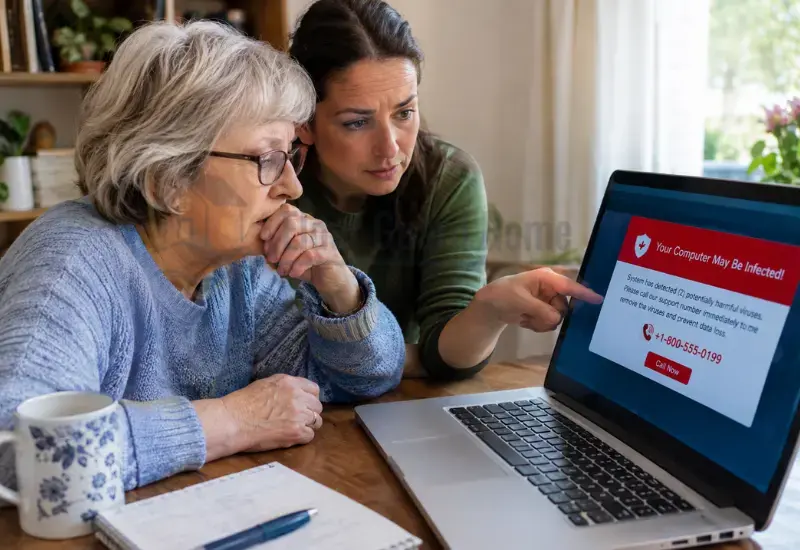
A fake virus warning is a deceptive message claiming that a computer has a security problem.
The message may appear while someone is browsing an ordinary website.
It can resemble a genuine operating-system or antivirus notification.
Some warnings use company logos, technical language, colors, and alarming sounds.
Others imitate familiar security screens or computer error messages.
The goal is usually to make the person contact the scammer.
The scammer may then pretend to provide technical support.
The FTC says tech support scams often begin with bogus computer warnings.
A fake security warning does not prove that the computer has a virus.
It may simply be a webpage designed to frighten the visitor.
Why Do Fake Virus Warnings Scare Seniors?
A frightening computer message can create pressure before someone has time to verify it.
The warning may claim that personal information is at risk.
It may threaten data loss or other serious consequences.
It may repeatedly tell the person to act immediately.
The message can also imitate a company the person already recognizes.
These tactics can make a pop-up scam targeting seniors feel legitimate.
However, the same tactics can affect people of any age.
The important issue is the pressure to act before independently checking the warning.
A useful family rule is simple:
Unexpected computer warnings should trigger verification, not immediate action.
How Does a Computer Virus Pop-Up Scam Work?
A Scary Warning Appears
The person may suddenly see a computer virus pop-up scam while browsing.
The message may claim that the device contains viruses or dangerous malware.
It may use a familiar company name or security-related wording.
Some warnings appear inside the browser and resemble system messages.
Microsoft says tech-support scam websites can display fake error messages and support numbers.
The warning is designed to create fear.
It is not proof that the computer has an infection.
The Warning Tells You to Call
A fake virus alert scam may display a phone number prominently.
The message may instruct the user to call immediately.
It may claim that calling will protect the computer or personal information.
That phone number is controlled by the scammer.
Microsoft specifically warns users never to call numbers provided inside error messages.
Microsoft also states that genuine Microsoft error messages do not include phone numbers.
If the warning appears to involve Microsoft, learn how to recognize a fake Microsoft security alert before taking action.
The Scammer Creates a Sense of Emergency
Scammers want people to act before thinking.
A fake virus warning may use phrases suggesting immediate danger.
The message may mention viruses, hackers, stolen information, or account problems.
Some warnings use sounds, full-screen displays, or repeated pop-ups.
Microsoft documents these techniques as part of web-based tech-support scams.
The pressure itself is an important warning sign.
A legitimate security concern should not require you to trust an unknown phone number.
The Scam Can Move From Pop-Up to Phone Call
The browser warning is sometimes only the first stage.
The person may call the displayed number for help.
The person answering may claim to be a technician.
The scammer may then request remote access to the computer.
They may also request payment or personal information.
This is how a tech support scam pop-up can become a larger fraud.
For the broader scam pattern, see our guide to tech support scams targeting seniors.
What Are the Signs of a Fake Virus Warning?
Look for several warning signs.
- The warning appears unexpectedly.
- It creates fear or urgency.
- It tells you to call immediately.
- It displays a phone number.
- It claims your computer has a virus without verification.
- It asks you to download software.
- It requests remote access.
- It asks for passwords or financial information.
- It demands payment for urgent technical help.
- It tells you not to close the page.
- It impersonates a familiar technology company.
- It discourages independent verification.
A fake antivirus warning often combines several of these signals.
One important rule is enough:
Do not trust a security warning simply because it looks professional.
What Should You Do When a Fake Virus Warning Appears?
Do Not Call the Number on the Screen
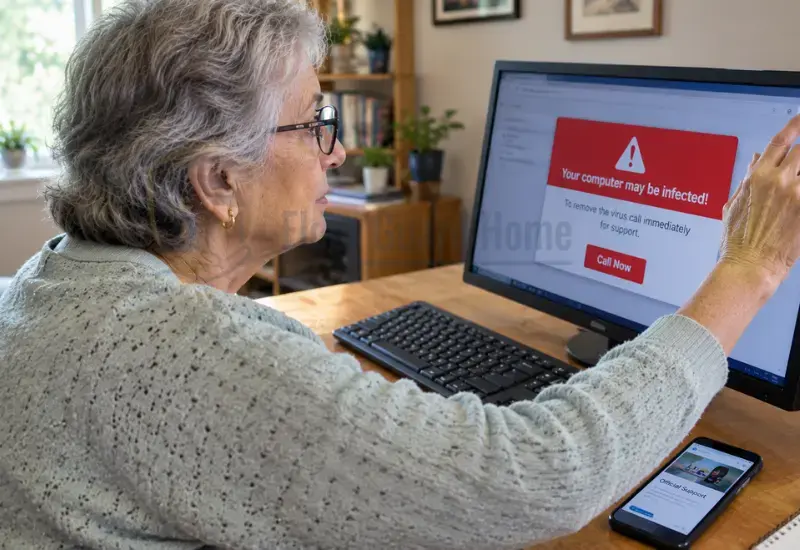
Never call the number displayed inside a suspicious warning.
Do not assume the number is legitimate because it has a familiar area code.
Do not trust a search result simply because it appears first.
Instead, find the company’s official website independently.
Use contact information published by that company.
The FTC specifically advises people not to call numbers shown in pop-up warnings.
You can also review the FTC’s guidance on tech support scams for broader warning signs and response steps.
Do Not Click the Warning or Install Software
Do not click buttons promising to remove the supposed infection.
Do not download software because the warning tells you to.
Do not install remote-support software for an unexpected caller.
Do not enter passwords, card details, or other private information.
A legitimate security check does not require you to trust an unknown pop-up.
If you already installed software or gave someone remote access, stop interacting with the scammer.
Then follow the appropriate recovery steps.
See our guide explaining what to do if a tech support scammer gets remote access.
Close the Browser Safely
A fake virus pop up may make the browser appear difficult to close.
Some scam pages repeatedly display warnings or open additional messages.
Others may use full-screen displays or alarming sounds.
Microsoft says these techniques can make scam pages appear more convincing.
Try closing the browser using its normal controls.
If the browser will not close normally, restart the computer.
Do not call the displayed number because the page appears stuck.
The warning may be coming from the webpage rather than the computer itself.
Verify the Computer Through a Trusted Source
After closing the warning, slow down.
Do not immediately search for another repair company.
Use legitimate security software already installed on the computer.
Update security software when appropriate.
Run a security scan if you are concerned about an actual infection.
The FTC recommends updating security software and running a scan when someone suspects a computer problem.
If you need technical help, contact a company through its official website.
You can also ask a trusted family member or qualified technician for help.
What If the Fake Virus Warning Will Not Close?
A fake virus warning will not close easily on some scam pages.
The browser may show repeated messages or appear frozen.
The page may also use full-screen mode to hide normal browser controls.
These techniques are designed to increase pressure.
They do not prove that the computer has a virus.
First, avoid clicking the warning itself.
Try closing the browser normally.
If that does not work, restart the computer.
After restarting, avoid returning to the suspicious webpage.
If you remain concerned, update legitimate security software and run a scan.
Microsoft specifically recommends closing the browser or restarting when scam pop-ups interfere with normal browsing.
What Should You Do If You Already Clicked the Warning?
Clicking a suspicious warning does not automatically mean your computer is infected.
The next step depends on what happened afterward.
If You Only Clicked the Pop-Up
Close the suspicious webpage.
Do not provide personal information.
Do not install software from the warning.
Update legitimate security software if needed.
You can then run a security scan if you remain concerned.
If You Downloaded Something
Do not continue following instructions from the warning.
Do not give the caller additional access.
Record the name of anything you downloaded.
If you are unsure what was installed, seek trusted technical assistance.
Avoid randomly deleting unfamiliar files or programs.
A qualified technician can assess the computer more safely when needed.
If You Entered Personal Information
Think about exactly what information you provided.
Passwords should be changed when they were exposed.
Prioritize important email, financial, and other sensitive accounts.
Use a clean device when changing highly sensitive credentials if appropriate.
If financial information was exposed, contact the relevant financial institution.
If You Gave Remote Access
Remote access changes the situation.
The scammer may have viewed information or interacted with the computer.
Do not treat the incident as only a browser pop-up.
Follow a dedicated recovery process for the device and affected accounts.
Read our guide on what to do if a tech support scammer gets remote access.
What If a Fake Virus Warning Leads to Money Loss?
A fake virus warning can sometimes lead to payment demands.
The scammer may claim that technical support requires a fee.
They may request gift cards, transfers, cryptocurrency, or another payment method.
The FTC identifies these payment demands as common features of tech-support scams.
If money was sent, stop communicating with the scammer.
Do not send additional money to recover the first payment.
Contact the payment provider as soon as possible.
Save receipts, messages, phone numbers, and other evidence.
Report the incident through the appropriate reporting channels.
For detailed recovery steps, read what to do when an elderly parent has already given a scammer money.
Be especially cautious of anyone promising guaranteed recovery.
How Can You Help an Elderly Parent Handle Fake Virus Warnings?

Caregivers can create a simple response rule.
Use:
STOP → DO NOT CALL → VERIFY → ASK FOR HELP
Explain that an unexpected warning should never require immediate payment.
Teach your parent to close the warning instead of calling it.
Keep trusted support information somewhere easy to find.
Make it clear that asking for help is encouraged.
Avoid blaming someone after they interact with a scam.
Fear of embarrassment can make people delay reporting problems.
A calm family response makes future reporting easier.
This is especially useful when an elderly parent computer scam begins with an unexpected warning.
How Is a Fake Virus Warning Different From a Real Security Alert?
A fake security warning often relies on pressure.
It may demand an immediate phone call.
It may display a suspicious support number.
It may request remote access or payment.
It may discourage you from independently checking the problem.
A legitimate security notification can look different depending on the operating system or security software.
That is why appearance alone should not determine whether a warning is genuine.
Instead, verify the alert through the software or company’s legitimate support channels.
Do not use contact information supplied by a suspicious pop-up.
Microsoft specifically advises users to avoid phone numbers shown in error messages.
Common Fake Virus Warning Examples
“Your Computer Has a Virus”
This warning claims that the device contains an infection.
The message may immediately provide a phone number.
Its goal is to make the user seek the scammer’s help.
“Your Microsoft Security Has Expired”
A scammer may use Microsoft branding to create familiarity.
The warning may claim that urgent action is required.
Verify Microsoft-related warnings through Microsoft’s official website.
“Your Personal Information Is at Risk”
This message tries to create fear about identity or financial information.
It may tell the user to call a support number.
Do not provide information to the person behind the warning.
“Call Technical Support Immediately”
Urgency is a major warning sign.
A legitimate security issue should still allow independent verification.
Do not let the message choose the support provider for you.
“Do Not Shut Down Your Computer”
Some warnings attempt to prevent the user from closing the page.
The instruction may make the warning seem more serious.
Do not follow suspicious instructions simply because the message appears official.
What Not to Do After Seeing a Fake Virus Warning
Do not:
- Call the displayed phone number.
- Click suspicious buttons.
- Download unknown software.
- Give remote computer access.
- Share passwords.
- Share banking information.
- Share verification codes.
- Send money.
- Buy gift cards.
- Follow instructions from an unsolicited caller.
- Let embarrassment stop you from asking for help.
The safest response is to slow down.
Verify the situation through a trusted source.
When Should You Get Professional Help?
Get trusted technical help when you are unsure what happened.
Professional help can be especially useful when:
- unknown software was installed
- remote access was granted
- passwords were exposed
- financial information was entered
- suspicious transactions appeared
- the computer behaves differently afterward
- you cannot identify what was downloaded
- you are unsure whether the device is safe
Choose the technician or company independently.
Do not use contact information supplied by the suspicious warning.
Frequently Asked Questions
What is a fake virus warning?
A fake virus warning is a deceptive message claiming that a computer has a security problem.
It may appear as a browser pop-up or fake security notification.
Its purpose may be to make you call, click, download software, or pay.
How can I tell if a computer virus pop-up is fake?
Look for urgency, suspicious phone numbers, remote-access requests, and payment demands.
A warning should be verified independently before you act.
Never assume that a professional-looking message is genuine.
Should I call the number in a virus warning?
No.
Do not call a number displayed inside a suspicious security warning.
Find legitimate support information through the company’s official website instead.
What should seniors do when a fake virus alert appears?
Stop and avoid clicking the warning.
Do not call the displayed number.
Close the browser safely and verify the computer independently.
Ask a trusted person for help if needed.
What if a fake virus warning will not close?
Do not call the displayed number.
Try closing the browser normally.
If necessary, restart the computer and avoid returning to the suspicious webpage.
Can a browser pop-up really tell if my computer has a virus?
A browser pop-up alone should not be trusted as proof of an infection.
Scammers can create webpages that imitate security warnings.
Verify suspected problems using legitimate security software or trusted support.
What should I do if I clicked a fake virus warning?
Stop interacting with the warning.
Do not provide information or install software.
If you downloaded something or provided credentials, take additional security steps.
What if I gave the scammer remote access?
Treat the incident as a security problem.
The appropriate response depends on what the scammer accessed or installed.
Follow a dedicated remote-access recovery process.
What if I paid someone after a fake virus warning?
Stop communicating with the scammer.
Contact the payment provider promptly.
Save evidence and report the incident.
For detailed steps, use our guide on recovering after an elderly parent gives a scammer money.
Final Thoughts
A frightening warning does not automatically mean your computer has a virus.
A fake virus warning is designed to create urgency before verification.
Do not call the displayed number.
Do not click suspicious instructions.
Do not install unknown software.
Do not give remote access.
Instead, close the warning and verify the problem independently.
If something already happened, respond calmly and document what occurred.
Asking for help early can prevent a stressful situation from becoming a larger loss.
Sources
- Microsoft’s guidance on avoiding and reporting technical support scams → Microsoft Support
- guidance on tech support scams → FTC Consumer Advice
- FTC guidance on urgent security pop-ups → FTC Consumer Alert