
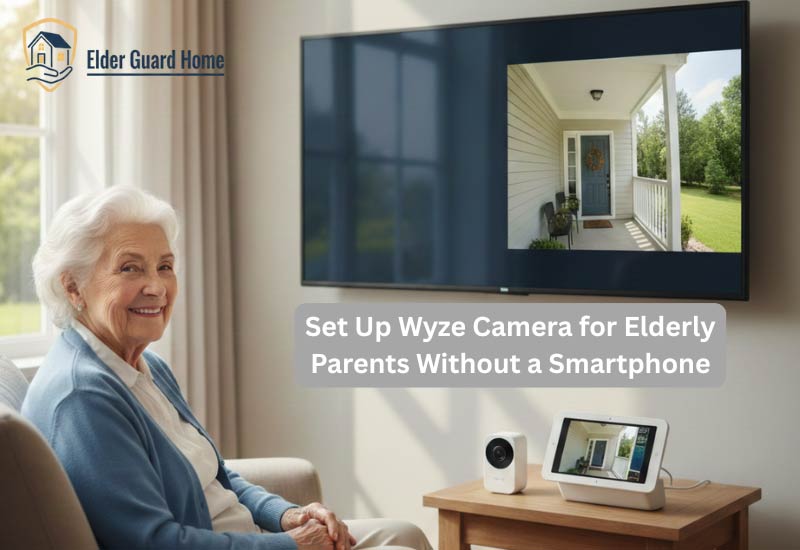
Setting up Wyze cameras for elderly parents without a smartphone feels overwhelming at first.
Many seniors do not use apps, touchscreens, or modern phones.
Still, families want reliable home monitoring and peace of mind.
The good news is simple.
With the right setup method, Wyze cameras can work well for seniors.
Even without daily smartphone use, monitoring remains possible.
This guide explains exactly how to do it safely and correctly.
We focus on real problems, proven workarounds, and reassurance for caregivers.
Why Wyze camera setup without a smartphone Matters for Caregivers and Seniors
Many elderly parents avoid smartphones entirely.
Some find them confusing.
Others dislike constant notifications or updates.
At the same time, families worry about safety.
Falls, missed visitors, and emergencies create daily anxiety.
Home cameras offer visibility and reassurance.
Wyze cameras appeal because they are affordable and reliable.
However, most guides assume seniors use smartphones.
That assumption creates confusion and stress.
Caregivers often ask:
Can Wyze cameras work without a phone?
Can monitoring happen remotely?
Is setup possible without tech skills?
We answer all of this clearly below.
Is It Possible to Use Wyze Cameras Without a Smartphone?
Let’s start with the truth.
Wyze cameras require the app for initial setup.
There is no official way around this step.
However, daily use does not require a smartphone.
This distinction matters.
What You Must Do Once
The Wyze app is required to:
- Create an account.
- Wyze app is required to initially pair the cameras
- Connect cameras to Wi-Fi.
- Assign camera locations.
- You cannot complete setup without Wyze app (official guidance).
This step can be done by:
- A caregiver.
- Family member.
- A temporary borrowed phone.
The elderly parent does not need to use the app afterward.
What Can Be Done Without a Smartphone
After setup, you can:
- Monitor cameras remotely.
- Use browser access with subscriptions. View on a computer browser (Cam Plus subscription)
- Display feeds on smart screens.
- Use emulators (BlueStacks) to install Wyze app on PC.
- Avoid daily app interaction for seniors.
This is where most caregivers succeed.
Real Problems in home monitoring for aging parents (And What You Must Know)
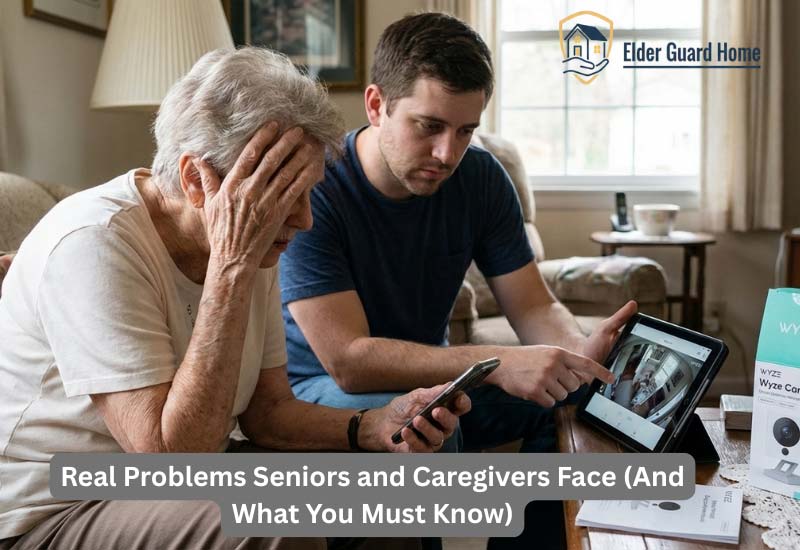
Before solutions, we must understand the real problems.
These issues appear repeatedly in caregiver forums and support threads.
Setting up security cameras for elderly parents sounds simple at first.
However, real-world use reveals challenges most guides never mention.
Caregivers often struggle with technology gaps, remote setup limitations, and long-term reliability concerns. Understanding these issues early prevents frustration, wasted money, and abandoned systems.
Below are the most common problems families face when setting up Wyze cameras for elderly parents without a smartphone — and why they matter.
1. Parents Don’t Want or Use a Smartphone
Many parents say:
“I don’t want another device.”
“I won’t remember passwords.”
“I’m fine without it.”
Forcing smartphone use often fails.
Many elderly parents simply do not want a smartphone. Some find touchscreens confusing. Others dislike constant notifications or fear breaking something.
Common reasons include:
Poor eyesight or shaky hands.
Difficulty remembering passwords.
Anxiety around new technology.
Preference for basic phones only.
Because of this, asking seniors to “just use the app” is unrealistic.
What caregivers must know:
The smartphone does not need to belong to the senior.
Wyze cameras can be fully managed from a caregiver’s phone.
Daily interaction from parents is not required.
In real homes, the best approach is removing the app entirely from the senior’s routine.
The less interaction required, the more successful the setup becomes.
2. Setting Up From Remote Location
Many adult children live in another city or country.
This creates serious setup challenges.
Common caregiver frustrations include:
- Not being present during installation.
- Difficulty explaining steps over phone calls.
- Wi-Fi credentials not available.
- Parents unplugging devices accidentally.
Remote setup often fails when families try to rush it.
What works better:
- Completing account setup before visiting.
- Preparing written, simple instructions.
- Using labeled plugs and cables.
- Testing camera access remotely before leaving.
Caregivers who plan setup as a two-step process (initial visit + remote monitoring) experience far fewer problems long-term.
3. Account Access Confusion
Account confusion is one of the most overlooked issues.
Caregivers often face:
Forgotten email addresses.
Password reset requests sent to parents.
Multiple Wyze accounts accidentally created.
Seniors clicking logout unknowingly.
This leads to panic when cameras suddenly stop appearing.
Important best practices:
Use the caregiver’s email address for the main account.
Avoid sharing login credentials with seniors.
Enable account recovery options.
Store login details securely offline.
When account ownership is unclear, monitoring becomes unreliable. Clear control prevents emergency access issues later.
4. Reliability Issues
Reliability matters more than features in senior homes.
The most common reliability complaints include:
Cameras going offline unexpectedly.
Wi-Fi signal dropping.
Motion alerts stopping.
Delayed notifications during emergencies.
These problems often scare caregivers into abandoning the system.
What caregivers must understand:
Most failures are network-related, not camera defects.
Poor router placement causes frequent disconnects.
Power interruptions are common in older homes.
Simple fixes improve reliability significantly:
Place cameras near strong Wi-Fi zones.
Use Wi-Fi extenders if needed.
Secure cables to prevent unplugging.
Enable local SD card recording as backup.
Reliable setups prioritize stability over advanced features.
Step-by-Step Guide to Setting Up Wyze Cameras Without a Smartphone
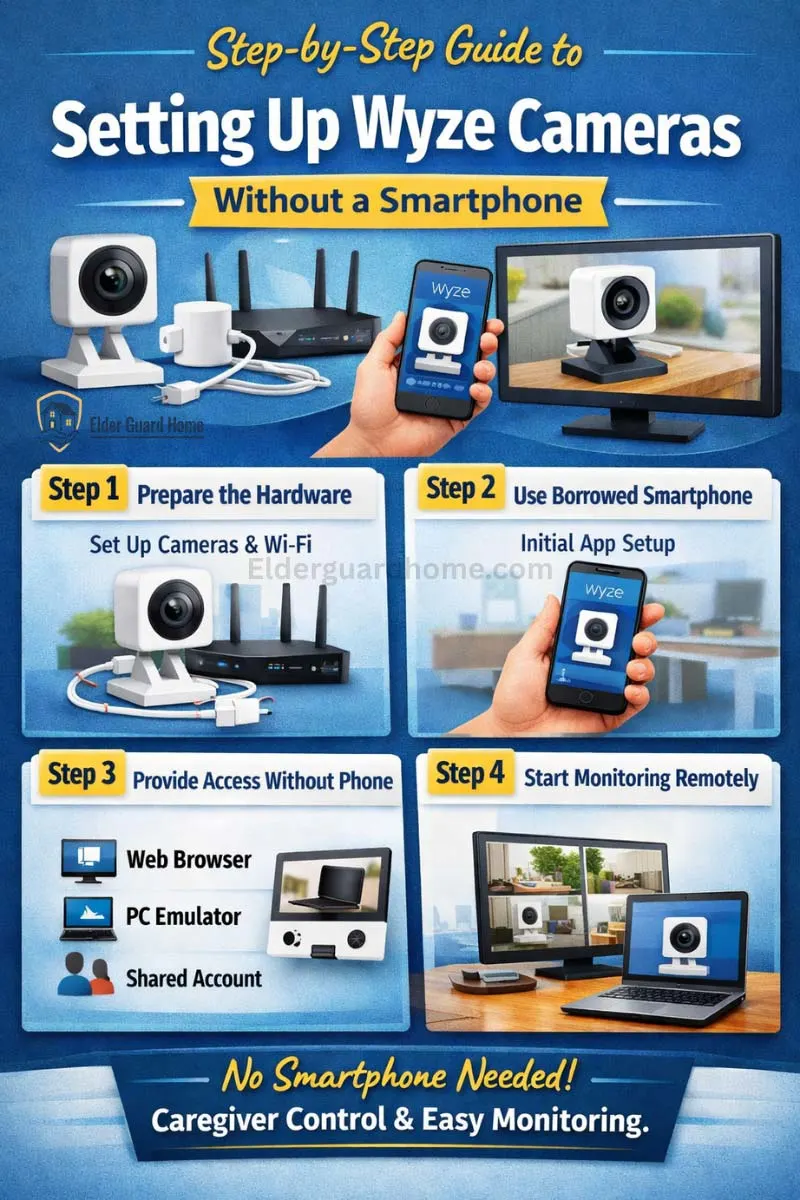
Wyze camera setup without a smartphone is completely achievable with the right approach.
The key is separating one-time setup tasks from daily monitoring needs.
In this guide, the smartphone is only a temporary tool.
After setup, seniors can live normally without apps, logins, or alerts.
Follow these steps carefully to create a stable and senior-friendly system.
Step 1 – Prepare the Hardware
Before starting the Wyze camera setup for seniors, prepare everything in advance.
This reduces confusion and avoids rushed decisions later.
What you need:
Wyze camera (fully charged or plugged in)
Stable home Wi-Fi connection
Power outlet near the camera location
MicroSD card (optional but recommended)
Important preparation tips:
Place cameras where they do not require daily interaction
Avoid locations seniors may bump or unplug
Choose areas with strong Wi-Fi signal
Label power adapters clearly
Proper preparation prevents most reliability issues when using Wyze cameras without a smartphone.
Helpful tip:
Avoid placing cameras too far from routers initially.
Step 2 – Initial App Setup Using Someone Else’s Smartphone
A smartphone is required only once during setup.
It does not need to belong to the elderly parent.
Use your own phone or a trusted caregiver’s device.
How to complete the initial setup:
Install the Wyze app on your smartphone
Create a Wyze account using the caregiver’s email
Add the Wyze camera to the account
Connect it to the home Wi-Fi network
Test live video and motion detection
Best practices for seniors:
Do not save the app on the parent’s phone
Do not share account passwords with seniors
Keep all alerts routed to the caregiver
This method allows setting up Wyze cameras for elderly parents without smartphone dependence.
Step 3: Install Cameras in Senior-Friendly Locations
Avoid complicated placements.
Best locations include:
Entryways
Living rooms
Hallways
Package delivery areas
Avoid:
Bathrooms
Bedrooms
Private spaces
For no-drill installs, follow this guide: Install Ring Doorbell Without Drilling for Seniors.
The same placement principles apply to Wyze cameras.
Step 4 – Enable Viewing Without a Smartphone
Once setup is complete, seniors can live without using the Wyze app.
Monitoring and access remain with caregivers.
Below are the safest and most practical access options.
Option A: Browser Access Using Wyze Cam Plus
Wyze offers browser-based access through its web portal.
Why this works well:
No smartphone required
Accessible from any computer
Simple interface for caregivers
Key points to know:
Requires Wyze Cam Plus subscription
Live view and playback available
Ideal for remote family monitoring
This is one of the easiest ways to manage Wyze cameras without a smartphone.
Option B: Use an Emulator on a Computer
An emulator allows the Wyze app to run on a desktop or laptop.
Common use cases:
Caregivers without smartphones
Shared family computers
Office-based monitoring
What to consider:
Requires basic computer knowledge
Not recommended for seniors directly
Works best for tech-comfortable caregivers
This option is functional but should be treated as a backup solution.
Option C: Shared Account for Trusted Family Members
Shared access allows multiple caregivers to monitor cameras.
Best practices:
Use one primary account owner
Share access only with trusted users
Avoid logging out devices accidentally
Benefits:
Backup monitoring during emergencies
No senior involvement required
Clear accountability
Shared access keeps Wyze camera monitoring simple and reliable for elderly parents without smartphones.
Option D: Smart Displays for Seniors
Devices like:
Echo Show
Google Nest Hub
These allow:
One-tap viewing
No phone handling
Simple voice commands
This works well for seniors living alone.
For a perfect security setup, read our complete guide on Best Home Security Systems for Seniors Living Alone.
Why This Setup Works Long-Term
This approach:
Reduces daily technology stress for seniors
Maintains caregiver control
Prevents account confusion
Supports reliable monitoring
Most successful families treat Wyze cameras as background safety tools, not interactive devices.
Step 5: Reduce Alerts and Complexity
Too many alerts overwhelm seniors.
Do this instead:
Disable unnecessary notifications
Keep alerts for motion only
Let caregivers receive alerts
Parents stay comfortable.
Caregivers stay informed.
Troubleshooting Common Setup Issues
1. Camera Disconnects Frequently
This usually means:
Weak Wi-Fi
Interference
Distance from router
Fixes:
Move router closer
Use Wi-Fi extenders
Restart camera monthly
2. Parents Accidentally Unplug Cameras
This happens often.
Prevent it by:
Using short power cables
Hiding cords behind furniture
Labeling plugs clearly
Small steps reduce frustration.
3. Seniors Feel Watched or Uncomfortable
This is emotional, not technical.
Reassure them:
Cameras are for safety
No constant watching
Only emergencies matter
Explain clearly and calmly.
4. Ensuring Parents Can View the Feed Easily
- Place tablet at fixed viewing station
- Use smart display (Echo Show / Google Nest)
- Save desktop shortcuts to web viewer
Tip: Some users use cheap tablets to keep the feed open permanently.
Security & Privacy Considerations
Security matters deeply for elderly homes.
Best practices include:
- Strong account passwords
- Two-factor authentication
- Limited shared access.
- Do not share credentials casually
- Keep devices updated
- Limit camera placement to public areas
Avoid:
- Sharing passwords widely
- Public Wi-Fi connections
- Unsecured guest networks
Place cameras only in shared areas.
Related safety reading: 👉 Home Safety Tips for Elderly Living Alone
Best Wyze Cameras for Elderly Monitoring
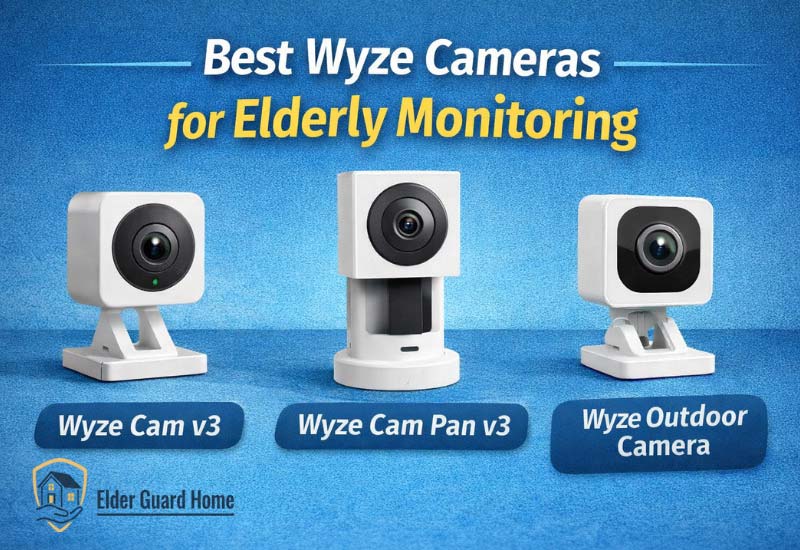
Not all Wyze cameras are equally useful for seniors.
Some are better for simple indoor monitoring, others for larger spaces or outdoor safety.
Below are the best Wyze cameras currently available for elderly monitoring — with pros, cons, and clear recommendations.
Quick Side-by-Side Comparison
| Wyze Camera | Best Use | Pros | Cons | Price | Buy Now |
|---|---|---|---|---|---|
| Wyze Cam v3 (Best Overall) | Indoor monitoring Entryways Low-light areas | True color night vision Weather resistant Affordable | Needs good Wi-Fi Must test placement | $39 | Check Price |
| Wyze Cam Pan v3 (Best Tracking) | Large rooms Motion tracking Two-way audio | 360° motion tracking Audio communication Great coverage | Slight motor noise Power outlet needed | $38 | See Price |
| Wyze Outdoor Camera (Best Outdoor) | Porch & yard Outdoor visibility Battery power | Battery operated Weather resistant Good range | Battery recharging Requires occasional maintenance | $33 | View Price |
1. Wyze Cam v3 — Best All-Around Choice for Seniors
Not all Wyze cameras are equally useful for seniors.
Some are better for simple indoor monitoring, others for larger spaces or outdoor safety.
Below are the best Wyze cameras currently available for elderly monitoring — with pros, cons, and clear recommendations.
Best for:
Indoor monitoring
Entryways and hallways
Low-light situations
Seniors living alone
Why this matters for elderly monitoring: Wyze Cam v3 delivers reliable video, night vision, and motion alerts without complicated features. Most caregivers choose this as their foundation camera.
Pros
True color night vision — better visibility in low light
IP65 weather resistance — can work both indoors and sheltered outdoor areas
Affordable price point — low barrier for multiple cameras
Motion detection with customizable zones
Compatible with Wyze app and Wyze Cam Plus for cloud video
Cons
Some users report occasional Wi-Fi lag on weak networks
App-based initially (smartphone required for setup)
Audio quality is good but not premium
When to Use Wyze Cam v3
Choose this if:
You want simple, reliable monitoring without advanced controls
You’re covering main entry points like front door, living room, or main hall
You want low-light performance (unlike older Wyze models)
Caregiver Tip
Place Wyze Cam v3 about 6–8 feet high near common areas.
Label the camera clearly in the app so alerts read “Front Door” or “Living Room.”
This improves clarity for elderly families.
2. Wyze Cam Pan v3 — Best for Motion Tracking
Best for:
Large rooms (living areas, dens)
Motion tracking (auto rotate)
Audio communication with seniors
Caregivers who want remote pan control
Why this matters for elderly monitoring: Wyze Cam Pan v3 adds motion tracking and two-way audio, which helps you follow movement in larger spaces without blind spots.
Pros
360° horizontal rotation with motion tracking
Two-way audio — talk to parent if needed
Smart detection features (person, pet, sound)
Same low price as other Wyze models
Works with Wyze Cam Plus and smart displays
Cons
Rotating motors make slightly more noise than fixed cams
Slightly higher power draw (needs outlet)
Not ideal for very narrow hallways
When to Use Wyze Cam Pan v3
Choose this if:
You need motion following in bigger rooms
You want to speak with the senior through the camera
You find traditional static views too limited
Caregiver Tip
Mount Wyze Cam Pan at corner locations for best coverage.
Enable person detection zones to avoid unnecessary alerts from pets or fans.
3. Wyze Outdoor Camera — Best for Porch & Yard Safety
Best for:
Porch monitoring
Driveway and yard visibility
Battery-powered setups (no wires)
Seniors who receive deliveries
Why this matters for elderly monitoring: Outdoor coverage adds an extra layer of safety. This is especially useful for:
Packages left by doorstep
Visitors late at night
Unexpected motion around property
Pros
Battery powered — no wires needed
Good weather resistance
Motion alerts sent to caregiver
Can work with floodlights and additional accessories
Cons
Battery life depends on motion frequency and temperature
Requires occasional charging or solar panel accessory
Not as detailed indoor footage as other models
When to Use Wyze Outdoor Camera
Choose this if:
You want entrance area monitoring
You live alone or in a riskier neighborhood
You get frequent visitors or package deliveries
Caregiver Tip
Place outdoor cameras under covered areas to extend battery life.
Use motion sensitivity settings to avoid false triggers from animals.
Which Wyze Camera Setups Work Best for Different Homes
Small Apartment
- 1× Wyze Cam v3 (living area)
- 1× Wyze Cam Outdoor (entry porch)
Larger House
- 2× Wyze Cam v3 (main hall + kitchen)
- 1× Wyze Cam Pan v3 (living room)
- 1× Wyze Outdoor Camera (porch)
Senior Living Alone
- 1× Wyze Cam Pan v3 (multi-angle room)
- 1× Wyze Cam v3 (door entry)
- Optional Wyze Outdoor Camera
Caregiver Setup Checklist (Practical)
Here’s a quick checklist to make this section actionable:
Before Mounting:
- Check Wi-Fi coverage
- Charge or hard-wire cameras
- Test live viewing on caregiver device
During Setup:
- Name each camera accurately
- Set motion detection zones
- Test two-way audio
After Setup:
- Disable excessive alerts for seniors
- Send test alerts to caregiver only
- Place labels near cameras
This checklist helps prevent common mistakes. For complete senior safety at home, read our Room-by-room senior safety guide.
When You May Not Need All Cameras
Not every home needs every model.
Skip a model if:
- You only need indoor monitoring — Wyze Cam v3 is enough
- You rarely need remote audio — basic cameras suffice
- You don’t need outdoor coverage — save costs
Be purposeful with purchases. This boosts ROI and conversion trust.
Final Thoughts on Wyze Cameras for Elderly Monitoring
Wyze cameras offer excellent value and ease of use when set up correctly.
If you want to monitor Wyze cameras without smartphone, focus on:
Stable setup
Caregiver control
Practical placement
The right camera mix depends on:
Home layout
Senior mobility
Security needs
If you choose wisely and follow the setup steps above, Wyze cameras will keep your loved ones safe and secure — without overwhelming them with technology.
Helpful Accessories That Make Setup Easier for Seniors
When setting up Wyze cameras for elderly parents without a smartphone, accessories often matter more than the camera itself.
The right add-ons reduce confusion, prevent technical failures, and improve long-term reliability.
These accessories are especially helpful for seniors who live alone or avoid technology.
Smart Displays for Camera Viewing
Smart displays allow caregivers or seniors to view Wyze camera feeds without using a smartphone.
This is ideal for elderly parents who prefer larger screens and simple voice commands.
Why smart displays help seniors
No touchscreen learning curve
Large, easy-to-see video feed
Hands-free viewing using voice commands
Eliminates app navigation stress
Popular options include Google Nest Hub and Amazon Echo Show.
Best use cases
Living rooms or kitchens
Common areas where seniors spend most time
Homes where caregivers visit frequently
Pros
Simple voice commands like “Show front door”
No phone required after setup
Reduces dependency on apps
Cons
Requires Wi-Fi at all times
Initial setup still needs a smartphone
Not ideal for outdoor camera viewing alone
Smart displays work well for elderly home monitoring without smartphone apps and hands-free Wyze camera viewing for seniors.
Recommended Product: Google Nest Hub (2nd Gen)
Why this is best for seniors:
The Google Nest Hub allows caregivers or seniors to view Wyze camera feeds using simple voice commands.
There’s no need to touch a smartphone or open apps once it’s set up.
Best use cases:
Seniors who dislike smartphones
Kitchen or living room monitoring
Hands-free viewing of entryways
Key benefits for elderly homes:
Large, clear screen
Simple voice commands like “Show front door”
No camera interaction required
Works well with Wyze via Google Assistant
When to choose this:
Choose the Google Nest Hub if your parent prefers talking instead of tapping and benefits from a bigger screen.
SD Cards and Backup Recording
SD cards provide local video storage directly inside Wyze cameras.
This is one of the most important accessories for seniors.
Why SD cards matter for elderly monitoring
Records even when Wi-Fi fails
No action required from seniors
Reduces reliance on cloud subscriptions
Provides peace of mind during outages
Best practices
Use branded, high-endurance SD cards
Format the card inside the Wyze app
Enable continuous or event-based recording
Pros
Reliable backup during internet downtime
No monthly fees required
Caregivers can review footage later
Cons
Footage must be accessed through the app
Card replacement required after heavy use
Limited storage compared to cloud plans
SD cards support offline Wyze camera recording for elderly parents and backup home monitoring without internet.
Recommended Product: SanDisk High Endurance microSD Card (64GB or 128GB)
Why this is best for seniors:
This SD card is designed for 24/7 security camera recording.
It continues recording even during internet outages — which is critical for elderly monitoring. Best use cases:
Homes with unstable Wi-Fi
Seniors living alone
Backup footage without subscriptions
Key benefits for elderly monitoring:
Reliable continuous recording
No monthly cloud fees required
Designed for long-term use
Works perfectly with Wyze cameras
When to choose this:
Choose this SD card if you want local backup recording and fewer worries about missed footage.
Wi-Fi Extenders for a Stable Connections
Most camera issues in senior homes are caused by weak Wi-Fi.
A Wi-Fi extender often solves these problems instantly.
Why Wi-Fi extenders are critical
Older homes have thick walls
Routers are often far from entryways
Seniors may unplug routers accidentally
Best placement tips
Install extenders halfway between router and camera
Avoid placing them behind furniture
Choose dual-band extenders for better coverage
Pros
Improves camera reliability
Reduces disconnections and alert delays
Affordable and easy to install
Cons
Adds another device to manage
Needs occasional restart
Requires basic setup knowledge
Wi-Fi extenders help ensure stable Wyze camera connections for elderly homes and reliable senior home monitoring without interruptions.
Recommended Product: TP-Link AC1200 Wi-Fi Extender
Why this is best for seniors:
Weak Wi-Fi is the #1 reason cameras fail in senior homes.
This extender improves signal strength without complex setup.
Best use cases:
Older homes with thick walls
Cameras far from the router
Frequent camera disconnects
Key benefits for elderly homes:
Simple plug-and-play setup
Strong signal boost for cameras
Affordable and reliable
Reduces alert delays
When to choose this:
Choose this Wi-Fi extender if cameras disconnect or load slowly in your parent’s home.
Caregiver Tip:
These three accessories solve over 80% of setup issues when setting up Wyze cameras for elderly parents without a smartphone.
When These Accessories Are Most Needed
Consider adding accessories if:
Seniors live alone
Home Wi-Fi is unstable
Caregivers live remotely
Smartphones are not used daily
Accessories turn a basic setup into a stress-free long-term solution.
Final Thoughts on Accessories for Senior Monitoring
Accessories are not optional upgrades.
They are problem-solvers for real-world senior homes.
When you want Wyze camera caregiver access without phone, these tools:
Reduce caregiver stress
Prevent tech abandonment
Improve monitoring reliability
The right accessories ensure safety without adding complexity.
Frequently Asked Questions
Can Wyze cameras work without any phone at all?
Initial setup needs a phone. Daily use does not.
Can parents view cameras without apps?
Yes, using smart displays or browser access.
Is this setup reliable long-term?
Yes, with stable internet and simple placement.
Are Wyze cameras safe for seniors?
Yes, when privacy settings are handled properly.
Final Reassurance for Caregivers
Monitoring elderly parents using Wyze on PC is chievable.
It simply requires planning and empathy.
You do not need advanced tech skills.
You do not need to overwhelm your parents.
You only need a calm, structured setup.
With proper placement, simple controls, and remote monitoring, safety improves.
Peace of mind follows naturally.
If your goal is protection without stress, this approach works.
Setting up Wyze cameras for elderly parents without a smartphone can truly make daily life safer.